
BreachReady Security Bulletin: November 15, 2026
Verify payment changes. Check who can still reach your systems.
When an email about an invoice or payroll change looks familiar, a callback can prevent a payment from going to the wrong place. This issue explains how to verify payment changes and respond to a suspected mailbox compromise. It also explains how to check ConnectWise Cloud Backup recovery and who can access your systems through ScreenConnect.
By DFI Forensics · November 15, 2026 edition · Sources checked November 15, 2026
Business email compromise: pause the payment change
A supplier emails to say its bank has changed. It comes from a familiar address, perhaps in an invoice conversation you already recognize. Those details are not enough to trust the new instructions. Business email compromise (BEC) can involve an impersonated sender or a real mailbox someone has taken over. In its November 5 email threat review, Microsoft described impersonation lures involving invoice payments and payroll changes. Earlier this year, Cranbrook RCMP warned that compromised Microsoft 365 accounts were used to redirect payment in reported incidents. Microsoft threat review; Cranbrook RCMP.
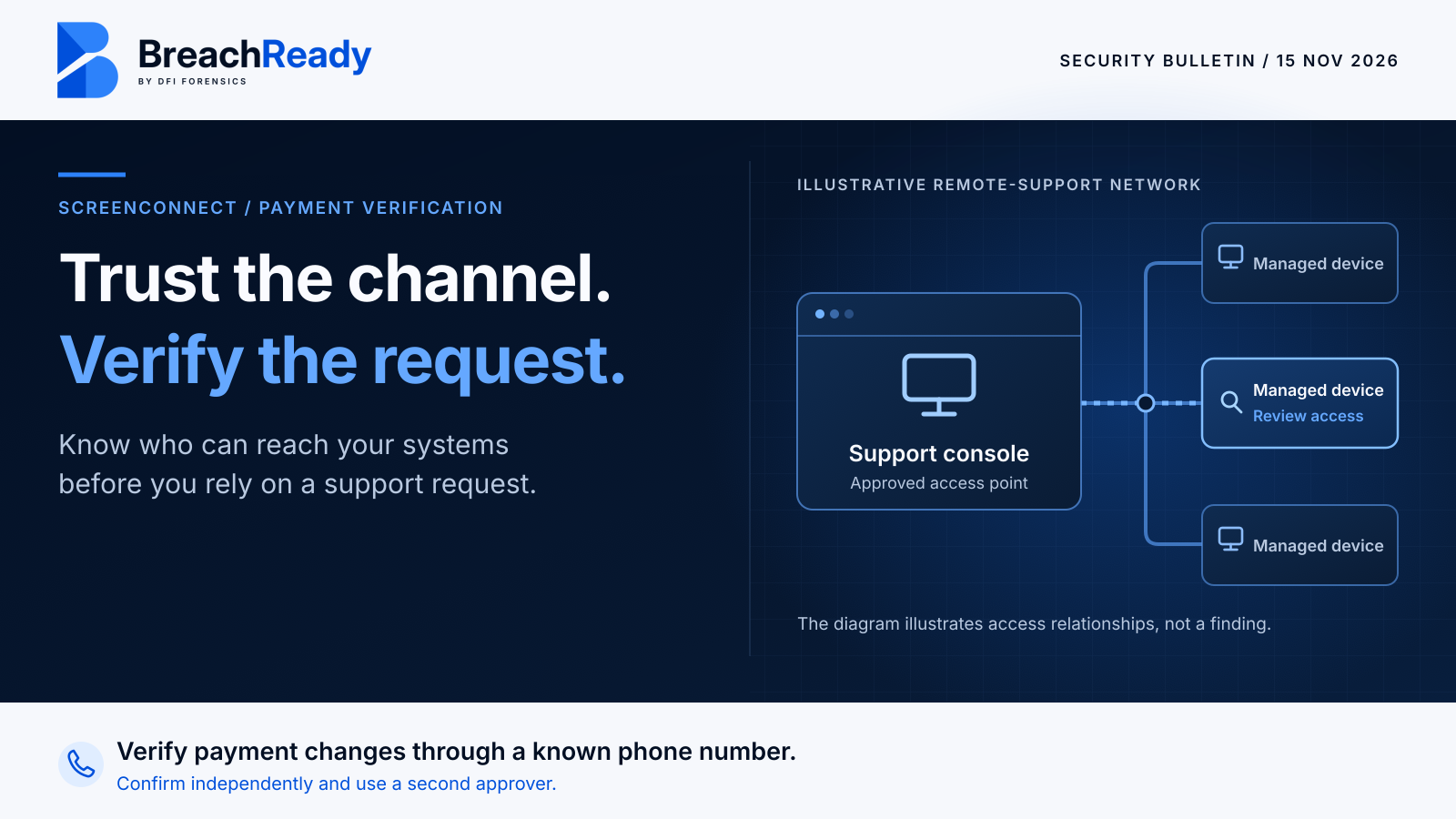
Before paying: pause the change. Call the supplier or employee using a number you already have on file or can verify independently of the message. Confirm the change with the person authorized to make it and get a second approver before updating the payment record. A reply in the same thread is not an independent check. The Canadian Anti-Fraud Centre recommends verification using an established contact method.
If money may have moved: have finance contact the bank immediately using its established fraud contact and ask about recovery options. Preserve the original message, related invoices, approval history and payment details, and notify your incident lead. A change in payment details is not proof that your own account was compromised; the lead can help decide which organization needs to investigate.
If a mailbox may be compromised: involve your IT and response teams promptly. Have them review active sign-ins, sessions, authentication methods, forwarding rules and related permissions. Preserve relevant records while containment proceeds. Microsoft’s compromised-account response guidance covers checks that a password change alone does not address. When contact is necessary, use a trusted route outside the suspected mailbox.
ConnectWise Cloud Backup: confirm the restore, investigate separately
ConnectWise reported unauthorized access to application credentials associated with Cloud Backup, formerly SkyKick, in October. In its November 4 update, the vendor said restoration was continuing in phases and backups and restores were available for re-authorized Microsoft 365 tenants. That is a service-status update: it does not establish whether any particular tenant was accessed or whether your backups cover the period you need. ConnectWise’s Cloud Backup update; Microsoft’s October incident reporting.
Ask your provider for a record for each affected Microsoft 365 tenant, including any legacy connections in scope. Confirm the last known-good backup before the interruption, the first successful backup after the supported reconnection, and the result of an agreed restore test. If coverage is incomplete, record the dates and which services or data still need an alternative recovery plan.
In parallel, have the Microsoft 365 administrator and incident lead review the relevant application sign-in and audit history, permissions and role changes using the vendor’s incident guidance. A successful reconnection or restore is useful recovery evidence. It cannot settle whether there was earlier unauthorized activity, and a successful suspicious authentication alone does not prove that data was accessed or stolen.
ScreenConnect: verify who can reach your systems
This is a separate November development affecting a different product. A service desk can fix a computer without sitting in front of it. That convenience comes from an intentional grant of trust: approved support staff can connect to managed devices, sometimes without someone at the keyboard. If a party gains unauthorized access to that service, the same reach that makes support useful can make it difficult to know which devices need review. A contractor or managed service provider (MSP) may operate the tool even when it does not appear on your own application list.
On November 11, ConnectWise reported unauthorized access to some partner cloud-hosted ScreenConnect environments. On November 13, Microsoft independently confirmed the activity and said it observed unauthorized remote-access software being installed on managed devices. Microsoft also examined a toolkit that could target support technicians’ workstations, giving responders a reason to look at both the machines technicians use and the machines they support. ConnectWise’s November 13 update said researchers reported additional activity targeting on-premises environments where previously identified third-party extensions remained enabled. ConnectWise Trust Center, November 13 update; Microsoft Security Research, November 13.
ConnectWise said it had not found evidence that its infrastructure was compromised or that a flaw in the core ScreenConnect product was used for initial access in the activity it was investigating. Its work on how access was first gained was ongoing. Finding one of the extensions named in the advisory does not, on its own, show that anyone used it to gain unauthorized access. Conversely, an updated technician workstation does not establish that a managed device was never reached.
The business question is which parties and systems can be trusted to coordinate the response. An unauthorized remote-access client could leave a separate connection open after your provider secures the legitimate service. That possibility is a reason to establish scope and preserve records. It is not evidence, on its own, that data was taken, a particular customer was affected, or ransomware was installed.
What applies to your environment?
| Environment | What your IT team or provider should verify |
|---|---|
| No known ScreenConnect use | Ask every relevant IT provider whether it uses ScreenConnect for your systems, including unattended access. Record who confirmed the answer and what was checked. |
| ConnectWise-hosted ScreenConnect | Confirm the vendor’s extension actions apply to your instances. Separately verify that every technician workstation has ScreenConnect client version 26.6.5 or later. |
| Self-hosted ScreenConnect | Identify every instance. Follow the current ConnectWise advisory immediately: disable the extensions it requires, review those it recommends disabling as a precaution, and verify the technician-client version separately. Cloud-side actions do not change a self-hosted environment. |
| Unclear ownership or missing data | Treat the scope as unverified. Ask the person responsible for each service to confirm the hosting model, extensions, technician workstations and the records still available. |
Refer to ConnectWise’s dated instructions for the exact extension list, distinction between required and precautionary steps, and current version guidance. The extension action and technician-client update address separate risks. Neither closes an investigation into suspected unauthorized access.
Ask your provider for two answers
Which systems and workstations has your provider verified? Ask for a short written record of which instances and technician workstations were checked, which extensions were disabled, which client versions were confirmed, and when. Ask who owns any remaining exception. A screenshot of the server version cannot establish that each technician client was updated.
What did you check for earlier unauthorized access? Ask whether the provider still has the relevant platform and endpoint records, how far back the review went, and which devices or logs could not be checked. Useful records include console activity, session and administrative history, endpoint security alerts and inventories of remote-access tools. Do not infer that a device is clean from a short review with gaps in coverage.
If a provider gives you a short summary, look for explicit distinctions among “verified,” “pending,” and “not visible.” For example, “all extensions checked across both instances” is more useful than “vendor remediation complete.” “We had seven days of logs and no endpoint records for three devices” gives your response lead a concrete gap to resolve without overstating what is known.
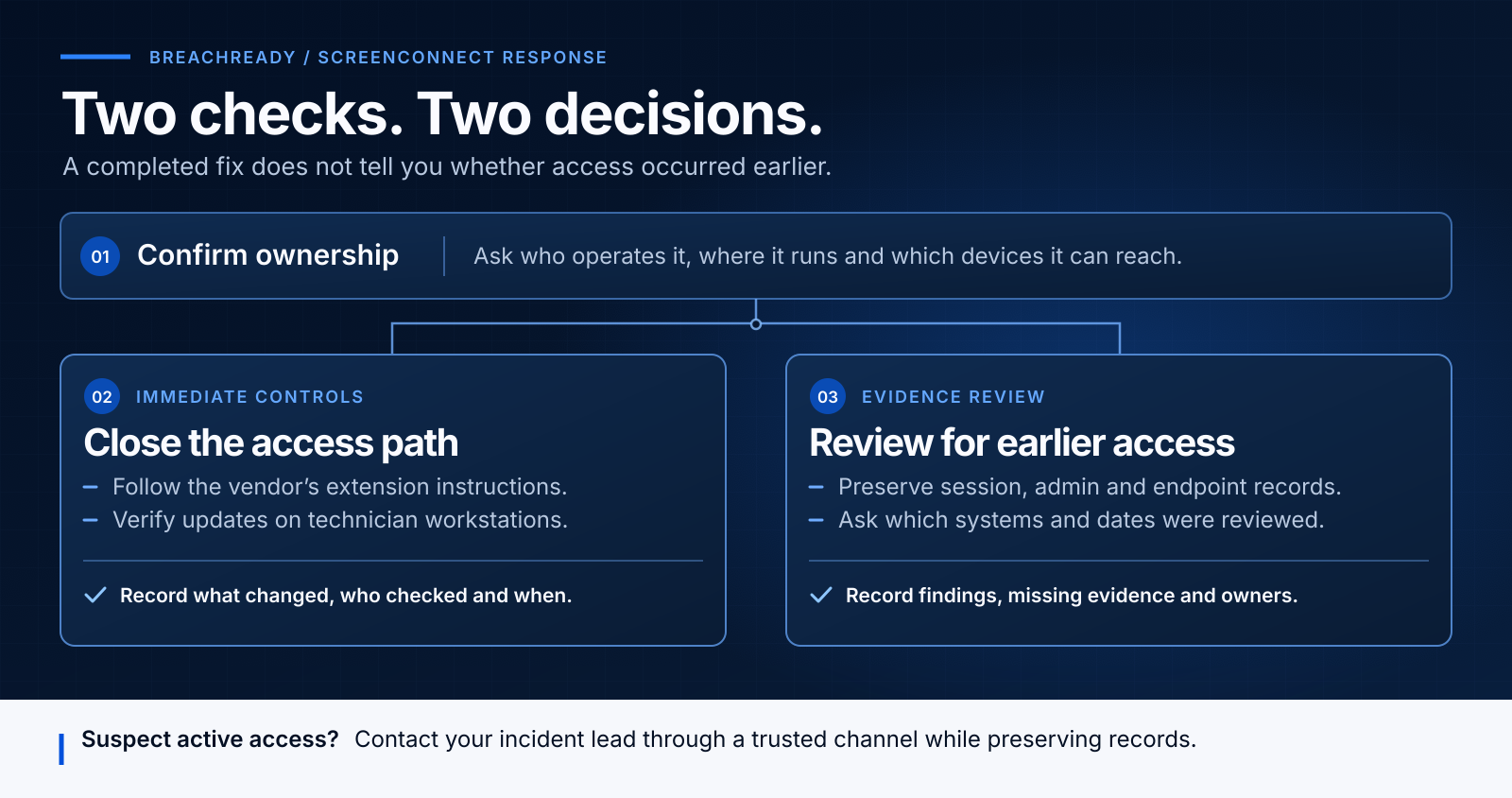
Closing the access path and reviewing historical activity are separate responsibilities. Record who verified each, and what the evidence could not answer.
If you suspect unauthorized access
Use an agreed phone number or another trusted route to reach the service owner and your incident lead. Do not use the potentially affected ScreenConnect service to investigate or clean a suspected device. Coordinate isolation and evidence preservation with the responders responsible for the environment; do not let a routine maintenance task overwrite logs or obscure what happened. If activity is continuing, do not wait to gather a perfect record before involving your incident lead. ConnectWise response guidance.
Prioritize the systems where a technician or tool could reach several endpoints, and work with your IT provider to review both the provider side and your side of the connection. If affected sessions or accounts are suspected, follow supported guidance from a trusted device rather than relying on a password change by itself. Restoring access should be a separate decision informed by what responders learned about devices, accounts, and any remaining unauthorized access.
Outlook: check the desktop apps, not just the email service
Microsoft’s November 10 release addresses a Windows desktop Outlook vulnerability, CVE-2026-124194, that has been exploited. The Canadian Centre for Cyber Security confirmed the exploitation status in its November 12 update and noted that CISA added it to its Known Exploited Vulnerabilities catalogue on November 10. Microsoft advisory; Canadian Centre for Cyber Security update.
The issue concerns opening a malicious file in an affected instance of Outlook. Microsoft’s advisory excludes the Preview Pane as a trigger for this CVE. The risk includes possible account impersonation if credentials are exposed. That does not mean every suspicious message caused a compromise, nor does it make every email service or Outlook platform affected. Use the vendor’s affected-product and update tables for the versions actually deployed.
Have the desktop software owner verify the applicable November security update on devices, by product and update channel. Check for endpoints that are off-network, have been out of service, or have repeatedly missed updates. Updating a mail server or having cloud-hosted mail does not prove that installed desktop Outlook has been patched. Use Microsoft 365 Apps release information where applicable, and document any devices that are not yet verified.
If you have a credible report that a suspicious file was opened or see signs of unusual account activity, tell the incident lead while the context is still fresh. Preserve the original message or file through your approved evidence process without reopening it. Compare relevant sign-in and mailbox audit records with normal activity, checking for changes the account owner did not authorize. For finance and client service teams, use a known telephone number to independently verify reported payment-detail changes while the account is being assessed. The patch closes the software issue; identity and mailbox records help assess whether it was used.
Two checks for specific appliances
Check Point Security Gateways. The Canadian Centre for Cyber Security reported exploitation of CVE-2026-123039. Check Point identified internet-accessible gateways with Mobile Access enabled as the primary targets and reported limited cases with destructive consequences. If you use these products, have network security verify the applicable vendor remediation for gateways and associated management systems, prioritize exposed services, and ask what was visible in the logs before the change. Do not assume every Check Point deployment is affected in the same way. Canadian Cyber Centre advisory; Check Point vendor update.
Barracuda Email Security Gateway. CISA listed ESG CVE-2026-111560 and CVE-2026-116606 on November 10. If your organization or provider operates an ESG appliance, have the administrator confirm whether the affected management interface was exposed, whether the vendor’s rollout and instructions apply to the particular appliance, and whether past exposure needs a separate review. This alert is about the named ESG product, not all Barracuda email services. Canadian Cyber Centre advisory; Barracuda trust advisory.
Bring two decisions to your next IT check-in
First, agree on who can tell you which tools and software versions actually touch your business. That person may sit with an MSP, procurement, an internal desktop team, or more than one of them. Have one accountable lead consolidate their answers. Second, agree on who can take a service offline or invoke the incident plan if suspicious access is found, and which phone numbers still work if your regular help desk or email cannot be trusted.
It is reasonable to ask for a date to resolve coverage gaps or for an explicit record of what no longer can be checked. Keep the remediation and investigation records side by side. A useful closure note says what systems were verified, whether anything suspicious was found, what records were unavailable, and who agreed to the next decision.
BreachReady starts with retained incident-response specialists and priority 24/7 support from day one of an active annual agreement. Alongside your IT team, DFI helps practise escalation decisions and implement practical safeguards against ransomware and business email compromise. Existing clients should use their agreed response contacts if they suspect unauthorized access. How BreachReady works.
Download the threat report
The companion report includes a payment-change checklist, a backup/restore review, an ownership and exposure worksheet, evidence-preservation prompts and a leadership sign-off sheet. Use the worksheet internally with your IT team or provider; you do not need to send it to DFI.
Download the threat report (PDF) · No email address or form required.
Optional: discuss your current response arrangements
If you are unsure how much of your environment your providers can verify, or who would make the first containment decision, book a 10-minute BreachReady introduction. We’ll discuss your current arrangements and a useful next step. If you have an active incident, use the urgent incident contact route instead of arranging an introductory meeting.
Sources and scope
This edition uses ConnectWise and Microsoft first-party reporting, the Canadian Centre for Cyber Security, CISA, the Canadian Anti-Fraud Centre and Cranbrook RCMP. The latest lead updates were published November 4–13; the Canadian payment-fraud reporting and October Cloud Backup investigation provide earlier context. Sources were checked November 15, 2026. Updates can change affected scope or recommended action. Follow the current vendor guidance for production changes. This bulletin does not establish a finding about any reader’s systems.